
What is Mobile CAD? Moving Technical Drawing from Computer to Tablet
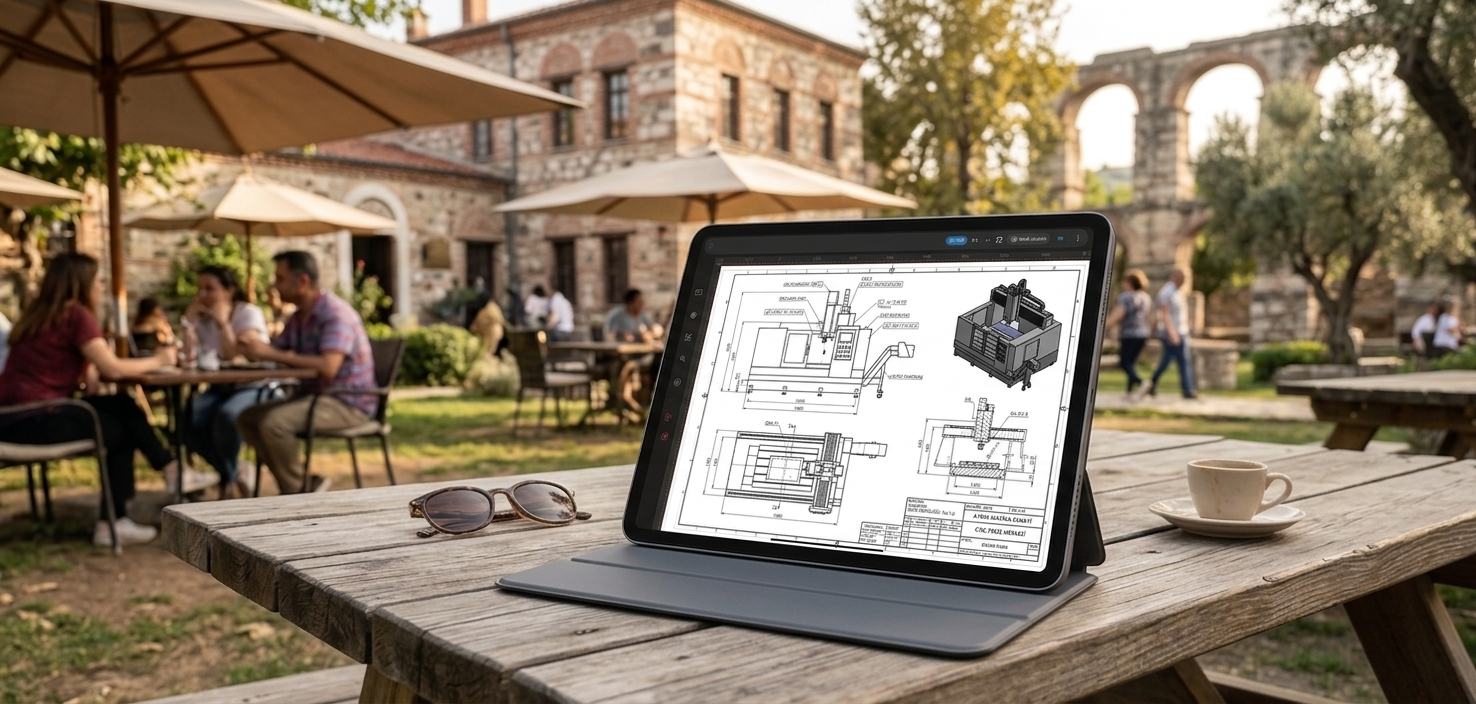
Technical drawing no longer has to be limited to working at a computer. Accessing, viewing, and editing CAD drawings on mobile devices such as tablets and smartphones is now possible. But what exactly is mobile CAD, who can benefit from it, and how is it different from desktop CAD?
When people think of CAD, they often imagine a computer working environment with a large monitor and professional equipment. Desktop computers do provide an important workspace, especially for large and long-term CAD projects.
However, the need for technical drawing does not always arise in an office or in front of a computer. An architect may want to check a drawing on a construction site, an engineer may need to examine a technical detail in a production area, a student may want to review a project between classes, or a technical drafter may need to make a quick change while meeting with a client.
This is where mobile CAD comes into play. Mobile CAD is a working approach that brings CAD and technical drawing workflows to mobile devices such as tablets and smartphones.
In this article, we will look at mobile CAD not simply as a type of application, but as a way of making the technical drawing workflow mobile. We will explore what mobile CAD is, when it can be useful, how it differs from desktop CAD, and who can benefit from it.
What Is Mobile CAD?
CAD stands for Computer-Aided Design. Architectural drawings, engineering projects, manufacturing drawings, and various technical design tasks can be prepared using CAD software.
Mobile CAD means bringing this working experience to mobile devices. In other words, mobile CAD refers to performing tasks such as creating technical drawings, viewing existing drawings, editing drawings, and working with files on a tablet or smartphone.
The goal is not simply to move the desktop computer experience onto a smaller screen. One of the most important advantages of mobile CAD is that you do not have to be in front of a computer when you need access to a technical drawing.
Mobile CAD is a working approach that allows you to access technical drawings and CAD workflows from mobile devices and perform supported tasks without being tied to a computer.
Why Use Mobile CAD?
Technical drawings are often used not only while they are being created, but also at different stages of a project. When you need to check a drawing, show a detail, review an existing file, or make a small edit, going back to a computer is not always practical.
This is where the main advantage of mobile CAD becomes clear: bringing the drawing to the place where it is needed.
Accessing Technical Drawings Outside the Office
Technical drawings may be needed in different environments such as construction sites, workshops, production areas, client meetings, or educational settings. A mobile device makes drawings more easily accessible in these environments.
Quick Checking and Reviewing
Sometimes the goal is not to create a new project, but simply to check a detail in an existing drawing. In such situations, accessing the drawing from a tablet or smartphone can be more practical than opening a computer.
Taking the Drawing to the Field
Mobile devices can be especially useful when technical drawings are used on site. Having the drawing available where the work is being performed can help users check the required information more quickly.
What Can You Do with Mobile CAD?
The features offered by mobile CAD applications vary depending on the software. Therefore, not every mobile CAD application should be expected to include all the features available in desktop CAD software.
However, CAD work on mobile devices is not limited to simply viewing files. Depending on the application's features, technical drawings can be created, edited, and exported in different formats.
Creating 2D Technical Drawings
Basic drawing tools such as lines, polylines, circles, arcs, and similar elements can be used to create 2D technical drawings on a mobile device. This can be particularly useful for quick drawing and field work.
Editing Existing Drawings
Mobile CAD is not only for creating drawings from scratch. Editing an existing drawing is another important use case. Editing operations such as Trim, Extend, Offset, and Rotate can be performed on mobile devices in CAD applications that support these tools.
Working with Layers
Layer management helps organize different drawing elements in technical drawings. Mobile CAD applications that support layers can provide a more organized and controlled drawing workflow.
More Controlled Drawing with Snap
Precision is important in technical drawing. Snap options such as Endpoint, Midpoint, Intersection, and Center can help users place drawing elements more accurately on specific geometric points.
Exporting in Different Formats
Depending on the formats supported by the application, drawings can be exported as PNG, SVG, or PDF files. This can make it easier to share or present technical drawings in different environments.
What Is the Difference Between Mobile CAD and Desktop CAD?
When comparing mobile CAD with desktop CAD, the most important point is that one does not necessarily have to replace the other. The two working environments offer different advantages.
Desktop CAD
- Large screen workspace
- Powerful computer hardware
- Large and long-term project workflows
- Complex CAD workflows
- Office and fixed working environments
Mobile CAD
- Portable working environment
- Access through tablets and smartphones
- Quick access to drawings in the field
- Reviewing and editing drawings
- Working without being tied to a computer
For this reason, rather than considering mobile CAD as a direct competitor to desktop CAD, it may be more accurate to think of it as a tool that expands the CAD working environment.
Especially when drawings need to be used outside the office, mobile CAD can become a practical solution that complements the desktop working environment.
Phone or Tablet? Which Device Is Better for Mobile CAD?
Choosing between a smartphone and a tablet for mobile CAD depends on the type of work being performed. Both devices can provide access to technical drawings, but screen size directly affects the user experience.
Using CAD on a Smartphone
Smartphones are highly convenient in terms of portability. They can be used to quickly open a drawing, review it, or check a specific detail when needed.
However, because of the smaller screen, long and detailed drawing sessions may not be as comfortable as they are on a tablet.
Using CAD on a Tablet
Tablets can provide a more comfortable working environment for technical drawings thanks to their larger screen area. In addition to touchscreen interaction, the ability to use a keyboard or similar accessories can make tablets suitable for more comprehensive mobile CAD workflows.
For more information about using a keyboard with CAD on a tablet, you can also read our article: Using CAD on a Tablet: Faster and More Efficient Technical Drawing with a Keyboard .
Who Can Use Mobile CAD?
Mobile CAD is not limited to a specific profession. It can be useful for many users who work with technical drawings or need access to drawing files in different environments.
Architects
Mobile CAD can be used to review architectural projects on site, check drawing details, and work on drawings when necessary.
Interior Designers
Measurements, plans, and technical drawings are important parts of interior design projects. Accessing drawings on a tablet can provide convenience, especially during on-site work.
Engineers
Engineering projects may require technical drawings to be checked and compared with actual applications in the field. A mobile device can make these drawings easier to access where they are needed.
Technical Drafters
Users who prepare technical drawings may want to review or edit their drawings not only in the office but also in different environments. Mobile CAD can provide a complementary working environment for this purpose.
CNC and Manufacturing Professionals
Technical drawings and DXF files may be required during manufacturing processes. Being able to check drawing files on a mobile device can be useful when access to a computer is limited.
Students
For students learning CAD, a tablet can provide a portable environment for reviewing technical drawings and practicing drawing workflows.
Construction Site Teams
When technical drawings are needed on a construction site, carrying a computer may not always be practical. Mobile CAD can make it easier to bring drawings into the field.
Why Are Mobile CAD and DXF Files Important?
File compatibility is an important consideration when using mobile CAD. Supported file formats are particularly important for users who want to access technical drawing files created with different CAD software on mobile devices.
DXF is one of the widely used file formats in the CAD world. Therefore, being able to open DXF files and edit them to the extent supported by the application can be an important advantage for users who want to work with existing technical drawings in a mobile environment.
To learn more about the DXF format, read our article: What Is a DXF File? .
If your goal is to open a DXF file directly on a smartphone or tablet, you can also take a look at our step-by-step guide: How to Open a DXF File on a Phone or Tablet .
When Does Mobile CAD Provide an Advantage?
One of the easiest ways to understand the value of mobile CAD is to look at practical use cases.
When You Need to Show a Project to a Client
During client meetings, accessing the relevant technical drawing on a tablet can be more practical than carrying a computer. Being able to display the drawing on a larger screen can make the discussion easier, especially when using a tablet.
When Checking Drawings on a Construction Site
A mobile device can provide significant convenience when a technical drawing needs to be checked on site. Instead of creating a separate computer workspace just to access the drawing, a mobile device can be used.
In a Workshop or Production Area
Technical drawings may need to be available alongside the manufacturing process. Mobile CAD can make it easier to bring drawing files into the working area where they are needed.
When a Quick Change Is Needed
Instead of returning to the office computer for every change, users can make necessary edits in a mobile environment using the editing tools supported by their mobile CAD application.
Can Mobile CAD Completely Replace Desktop CAD?
There is no single answer to this question. CAD usage requirements and project needs vary from one user to another.
For very large and complex projects, workflows that require a large screen, or professional tasks that require significant computing resources, desktop CAD remains an important working environment.
On the other hand, for users who need to access drawings on site, quickly review a project, edit an existing technical drawing, or move their drawing workflow to different environments, mobile CAD can be an important complement.
The purpose of mobile CAD is not necessarily to replace the desktop computer in every situation; it is to take your working environment beyond the computer when you need access to technical drawings.
The Mobile CAD Experience with TamgamCAD
TamgamCAD is a CAD application developed to bring 2D technical drawing workflows to mobile devices. It is designed for users who want to create drawings, work on existing drawings, and access technical drawing files in different environments.
TamgamCAD includes drawing tools such as Line, Polyline, Circle, Arc, Donut, and TTR, as well as editing tools such as Trim, Extend, Offset, and Rotate. Layer management and snap options such as Endpoint, Midpoint, Intersection, and Center also help users maintain a more controlled technical drawing workflow.
The application's DXF import and export support provides an important workflow for users who want to work with existing CAD drawings in a mobile environment. Drawings can also be exported in formats such as PNG, SVG, and PDF, helping with different sharing and presentation needs.
TamgamCAD is designed to allow technical drawing workflows to continue in different environments without being limited to a desktop computer.
Conclusion: Technical Drawing Is No Longer Limited to the Computer
Mobile CAD does not mean that the desktop working environment is disappearing completely. Instead, it allows CAD workflows to move to the places where they are needed.
Being able to access technical drawings through a tablet or smartphone can provide different advantages for architects, engineers, technical drafters, students, manufacturing professionals, and field teams.
Especially for users working with 2D CAD drawings, DXF files, and technical documentation, a mobile device can become more than a communication or content-consumption tool and become part of the technical workflow.
What matters is not which device is better, but which working environment is more suitable for the task. While benefiting from the workspace provided by a desktop computer in the office, using the accessibility of mobile CAD on site or while moving can make many workflows more flexible.